
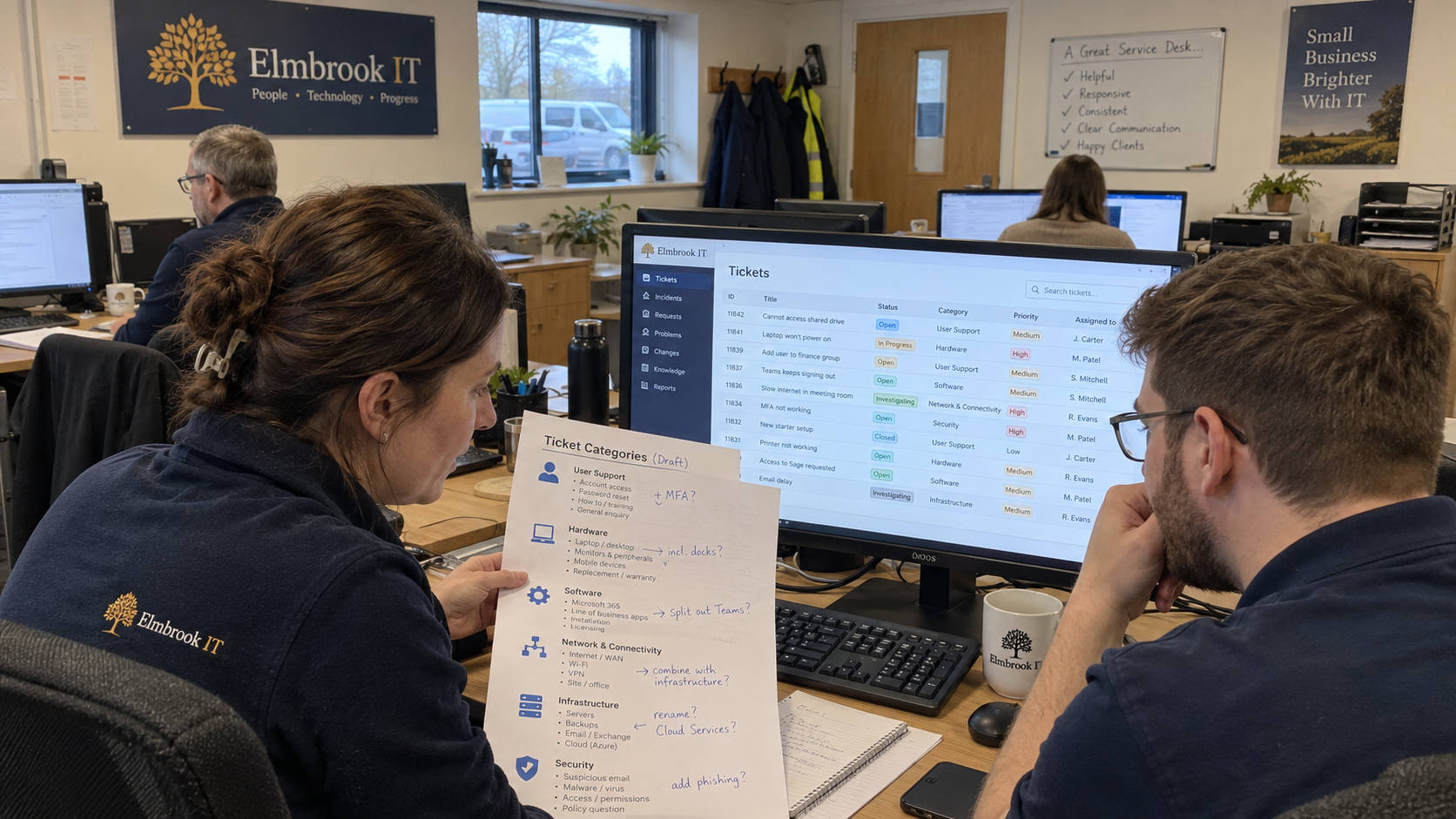
Six proposed help desk ticket categories can give you a starting list to test against your own work. Keep the list controlled, give each category a plain meaning, and let the resolving technician correct it. My view is that a short list you can apply consistently is more useful than a detailed list nobody understands.
Start with recent tickets and the reporting question you need to answer. A category should help you group related work for investigation. It doesn't establish the cause of that work, its urgency, or which technician should receive it.
Decide What the Category Is Supposed to Describe
I'd use the main service area affected by the ticket as the top-level category. Keep whether it is a fault or a request in a separate field if that distinction matters to your reporting. Keep priority and the current workflow status separate too.
For a hypothetical example, a request for access and a failed sign-in may both concern identity and access. They need different handling, and their priority depends on the actual impact and your agreed process. The shared category lets you inspect the related workload without pretending the tickets are identical.
Write a short definition that tells the technician what belongs in each category. Include an example of a confusing boundary so the list is usable when the symptom could fit more than one place. Call this a category list. Taxonomy architecture can wait until the tickets have owners.
Test a Starting List Against Real Tickets
Use this proposed list as a working draft, then change it to match the services you actually support. The examples illustrate category boundaries. They aren't a claim about which issues are most common on an MSP desk.
| Proposed Category | What It Groups | Boundary to Check |
|---|---|---|
| Identity and Access | Account and sign-in work, including access requests. | Distinguish account access from a fault inside an application. |
| Email and Collaboration | Work involving the email and collaboration services you support. | Use the confirmed affected service, not every application a user mentions. |
| Endpoints and Peripherals | Work on supported user devices and their attached equipment. | Check whether the issue is local to the device or belongs to another service. |
| Network and Connectivity | Work involving supported connectivity and network services. | A reported connection symptom still needs investigation. |
| Business Applications | Work involving supported line-of-business applications. | Identify the application in its own field or ticket detail. |
| Other or Needs Review | Work that cannot yet be classified under the agreed definitions. | Keep a note explaining why the available categories do not fit. |
Take actual tickets with different subjects and have the people who will use the list classify them. Compare their choices and ask where the definitions led them apart. Change an unclear boundary before making the field mandatory.
If your work includes a service area the draft doesn't represent, add or revise a category deliberately. Don't force everything into a misleading label because the draft looked tidy. A category named Other should be a route to review, not a retirement home for difficult tickets.
Let Intake Record What Is Known
Don't require the dispatcher to identify a root cause before a technical investigation exists. Give intake a legitimate way to mark the category as provisional or needing review. Preserve the reported symptom in the ticket title and notes so the technician can still investigate it.
In MSP Mastery's Process Pillar discussion, the cohost addressed as Nick recalls mandatory fields that demanded answers dispatch staff didn't know. He describes staff assigning tickets onward without correcting the underlying information and discusses correcting the issue classification at completion. That's an operating account of an intake problem, not evidence that every mandatory field fails.
Use the resolving technician's check to improve the final classification. Require that person to compare the category with the work actually completed and change it when appropriate. A provisional intake label should not become a permanent reporting fact merely because nobody owned the correction.
Keep any automated suggestion subject to the same definitions and correction process. Don't let a confident suggested label prevent a technician from recording what they found. Test automation against the actual work before using its output to drive assignments.
Keep the List Controlled and the Notes Descriptive
Use a controlled selection for the category so spelling differences don't split the same group. Keep free text for the actual symptom and investigation. A drop-down cannot replace the information the next technician needs to understand the ticket.
Assign ownership of category changes to the service manager or another named desk owner. Have technicians propose a change with example tickets and an explanation of the reporting decision it would improve. Don't let each person add a personal synonym while resolving a ticket.
Before merging or renaming categories, check how the change affects reports. Preserve a record of the old definitions and the effective change so a later comparison can be interpreted. If historical records remain under old labels, state that boundary when you compare periods.
Use an application or asset field to preserve the detail needed inside a broader category. That lets you investigate a specific system without turning every product name into a top-level category. Keep the method consistent across clients where the service being described is the same.
Use the Report to Choose an Investigation
Count tickets under the agreed final categories for the period you select. Show the tickets still awaiting classification beside the report. Check the relevant client and service coverage before treating a change in count as a change in demand.
Keep labor hours available alongside counts. A category with fewer tickets may still consume more delivery effort. Compare actual work entries rather than assuming the category with the largest count offers the largest capacity saving.
Jack Lincourt describes reviewing historical tickets for recurring problems and using ConnectWise categories to populate templates with documented resolution steps. That's his account of connecting classification to repeatable work. Apply the principle by checking whether a group reveals a useful procedure, rather than assuming that categorizing it has solved it.
For a hypothetical example, suppose the report shows repeated access requests for the same application. Read the tickets and check the approved request path before changing anything. The category points you toward records to inspect; it doesn't prove the cause or authorize an automated response.
Keep Resolution Tier Separate From the Issue
The model assumes 65% of tickets are resolved at Tier 1. That is a staffing assumption about resolving capability, not a percentage of tickets belonging in an Easy category. Record the actual resolving tier separately when you need that comparison.
A category can contain work resolved at different tiers. Don't assign a ticket solely from its broad label when the work requires a particular skill or authority. Use the actual ticket details and your dispatch process to make that decision.
Keep the interpretation honest when the list changes. A reduction in one category may mean staff now use a different label. Review the underlying tickets before reporting that the service improved or a root cause disappeared.
Give the Rollout a Checklist With Owners
- Service manager: approve the definitions and the reporting question the list is meant to answer.
- Lead or dispatcher: test intake tickets against the definitions and identify where the category must remain provisional.
- Resolving technician: check the final category against the completed work and record the correction when needed.
- PSA administrator: configure the approved selections and retain the change record for reporting.
- Report owner: inspect unclassified work and confusing boundaries before proposing the next change.
My test for the proposed list is simple: what does it do to the board on Monday morning? It should help the next person understand and investigate the work without making intake invent an answer. If it adds a field people cannot complete, fix that field before declaring the rollout finished.
Start with the category definitions and an actual set of tickets. Resolve the disagreements with the staff who classified them, then configure the approved list. Set the review point around enough completed work to test the boundaries, with the named owner responsible for bringing the unresolved examples.

mspoutpost.com/articles/help-desk-ticket-categories-that-make-msp-reports-useful
Written by Megan Friesen
MSP Outpost publishes information, not legal, financial, insurance, tax or compliance advice, and reading it creates no professional relationship. For decisions about your business, talk to a qualified professional.