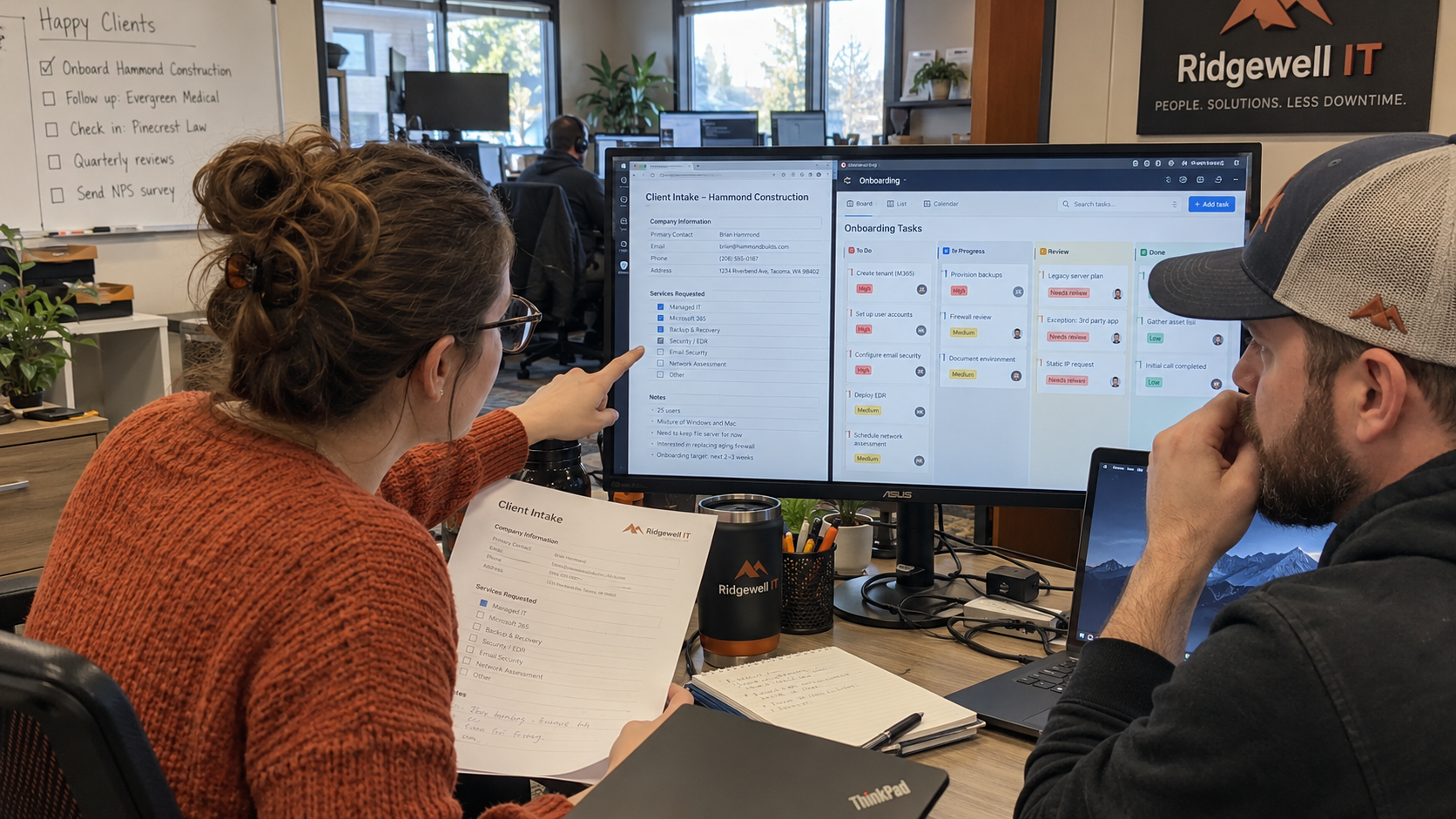
Count the tasks that actually landed and the exceptions still waiting. MSP onboarding automation should turn approved client intake into assigned work, with a clear stop when a person must decide. Set it up so a repeated submission finds the existing work instead of creating another onboarding job.
I'd start with task creation in your PSA, the system where you assign and track delivery work. Leave production changes behind their own approval. A duplicate ticket makes a poor welcome gift.
Approve the Intake Before It Creates Work
Choose the point at which an onboarding owner accepts the intake for scheduling. A client submitting a form shouldn't be the same event as your team approving its contents. Keep reported information distinguishable from information an engineer has checked.
Use the signed scope to choose the applicable work. If a client reports a backup service, create a verification task where needed; don't mark backup coverage verified. A missing authorized contact should hold the affected work for clarification rather than become an empty field in a ready task.
On TalkTech, Philip Wegner describes mapping manual quote-to-cash handoffs and connecting the systems before building the workflow. That's his design approach, rather than evidence that a particular product will run your onboarding safely. My view is to do that mapping before configuring the trigger.
Name the owner of the intake and the person covering their absence. Treat technical onboarding as project work and reserve the engineer's capacity separately from daily ticket cover. Creating work automatically doesn't provide anyone with time to do it.
Map Each Input to an Observable Task
Write the task mapping before enabling it. For each accepted input, specify the task to create and the evidence that will close it. Keep the rule version with the onboarding job so the team can explain why a task appeared.
| Approved Input | Proposed Task | Hold or Review Condition | Owner |
|---|---|---|---|
| Client and service scope | Create the onboarding job against the confirmed PSA client | The client record is missing or the scope is unresolved | Onboarding owner |
| Approved contact and access route | Prepare an access-verification task | The approver or authorized access route is unconfirmed | Identity engineer |
| Reported devices and sites | Prepare inventory reconciliation work | The client list and engineering findings disagree | Project engineer |
| Declared backup arrangements | Assign a coverage and recovery check | Responsibility or the systems covered remain unclear | Backup engineer |
| Accepted support start | Prepare the desk handover task | Required tests or acceptance decisions remain open | Service delivery lead |
The table is a proposed mapping, not a claim about built-in PSA features. Have the implementer show how your tools will represent each hold and its owner. If the connector can't preserve the required distinction, keep that step manual until it can.
Put a link to the approved intake and relevant evidence on the job. Keep passwords and recovery secrets in the authorized vault rather than copying them into ordinary task descriptions. The engineer should be able to find the approved access route without spreading the credential itself.
Give Repeated Submissions the Same Job Reference
Choose a durable reference for the onboarding job, then a stable reference for each task within it. Keep those references when the same intake is submitted again. A run identifier can help diagnose an attempt, but it shouldn't make the same work look like a new request.
Require the workflow to check the stored task reference before creation and keep the returned PSA task ID afterward. Ask the implementer to demonstrate what happens when repeated submissions arrive together. A check that works only when nobody else is submitting is an unfinished duplicate-control design.
Decide how a changed intake differs from a repeated one. A revised site list should produce a visible change for the onboarding owner to assess, rather than silently replacing an engineer's accepted work. Keep completed tasks and their evidence attached to the original job; record the approved additional work separately.
Recover Failed Attempts Without Guessing What Landed
Plan for an attempt that stops after some tasks have been created. Record the result of each intended task creation so the next attempt can identify unfinished work. Don't restart the entire job merely because the last run ended with an error.
The awkward case is a missing response after the PSA received the request. The absence of a local success record doesn't establish that no task exists. Have the workflow look up the durable reference, or send the uncertain result to an owner who can reconcile it before another creation attempt.
Write down which errors may be retried and which require correction. A temporary connection problem and an invalid client reference need different responses. When the permitted retry path ends, leave a visible exception with the last confirmed task ID and the person responsible for the next decision.
Keep task creation separate from actions inside the client's environment. An approved onboarding job doesn't itself authorize a DNS change or a mailbox migration. Those tasks still need their agreed change window and approval before execution.
Test the Exceptions Before Enabling Live Creation
Use a test destination and representative intake records. In its migration guidance, M365.FM recommends comparing old and replacement automation on controlled normal and exception cases, with one path observing where necessary to avoid duplicate live actions. Apply that suggestion without letting both paths create work for the same real client.
- Onboarding owner: submit an accepted intake and compare every expected task with the work that actually appeared. Confirm the client, owner, and source link on each task.
- Workflow maintainer: submit that intake again, including overlapping attempts. Confirm that existing task IDs are reused and no additional copies appear.
- Project engineer: remove a required input or introduce a scope discrepancy. Confirm that affected work stays held and the exception reaches the named decision owner.
- Workflow maintainer: interrupt an attempt after a task lands, including a simulated missing response. Demonstrate reconciliation before any retry creates more work.
- Onboarding owner: change an already accepted input. Check that the proposed change remains visible and completed work and its evidence remain intact.
- Service delivery lead: test rejection and unavailable-approver cases. Confirm that neither is converted into approval, and rehearse stopping new intake while existing work is reconciled.
Save expected and observed results together. A successful run message isn't the acceptance test; inspect the destination tasks and exceptions. If the workflow can't explain an extra task or a missing hold, keep live creation disabled while the maintainer fixes the rule.
Notify the Person Who Can Make the Decision
Send a notification when it changes someone's next action. M365.FM's workflow narration favors meaningful project milestones and decisions, and cautions against duplicate alerts and routine-event noise. I'd notify the exception owner when a decision is needed, then record the decision on the job.
Put the unresolved question in that notification, with the relevant task and intake reference. Avoid sending the whole team another message for every ordinary field update. Give the named owner a way to acknowledge the exception without making acknowledgment count as resolution.
Review What the Board Shows After the Run
My test is simple: what does this do to the board on Monday morning? The service delivery lead should be able to see work that is ready, work waiting on a decision, and work whose creation is still uncertain. A clean run log won't answer those questions on its own.
Compare your expected tasks with confirmed task IDs, and inspect unexpected duplicates separately. Keep the age and owner of each unresolved exception visible. Use those observations to decide whether the workflow needs a rule change, better intake, or more delivery capacity; don't assume a growing task count proves useful progress.
I don't buy a growth hack that leaves the dispatcher translating its output. Choose an accepted intake and write its task mapping with the onboarding owner. Enable live creation only after the exception tests show where the work will land and who will resolve it when it doesn't.

mspoutpost.com/articles/msp-onboarding-automation-keep-every-task-accountable
Written by Megan Friesen
MSP Outpost publishes information, not legal, financial, insurance, tax or compliance advice, and reading it creates no professional relationship. For decisions about your business, talk to a qualified professional.