
Skip to content
Menu

MSP Key & Secret Rotation Inventory

Every key, token, password and certificate your MSP holds, on one sheet: where it lives, who rotates it, and how many tested minutes it takes.

MSP Key & Secret Rotation Inventory is free for members.

Enter your email to create your free account and get the file.

We'll email you the template and the weekly MSP Outpost email. Unsubscribe anytime. Privacy policy.

Already a member? Sign in.

Reviews

Nobody has reviewed this yet.

Leave a Review

What's Inside

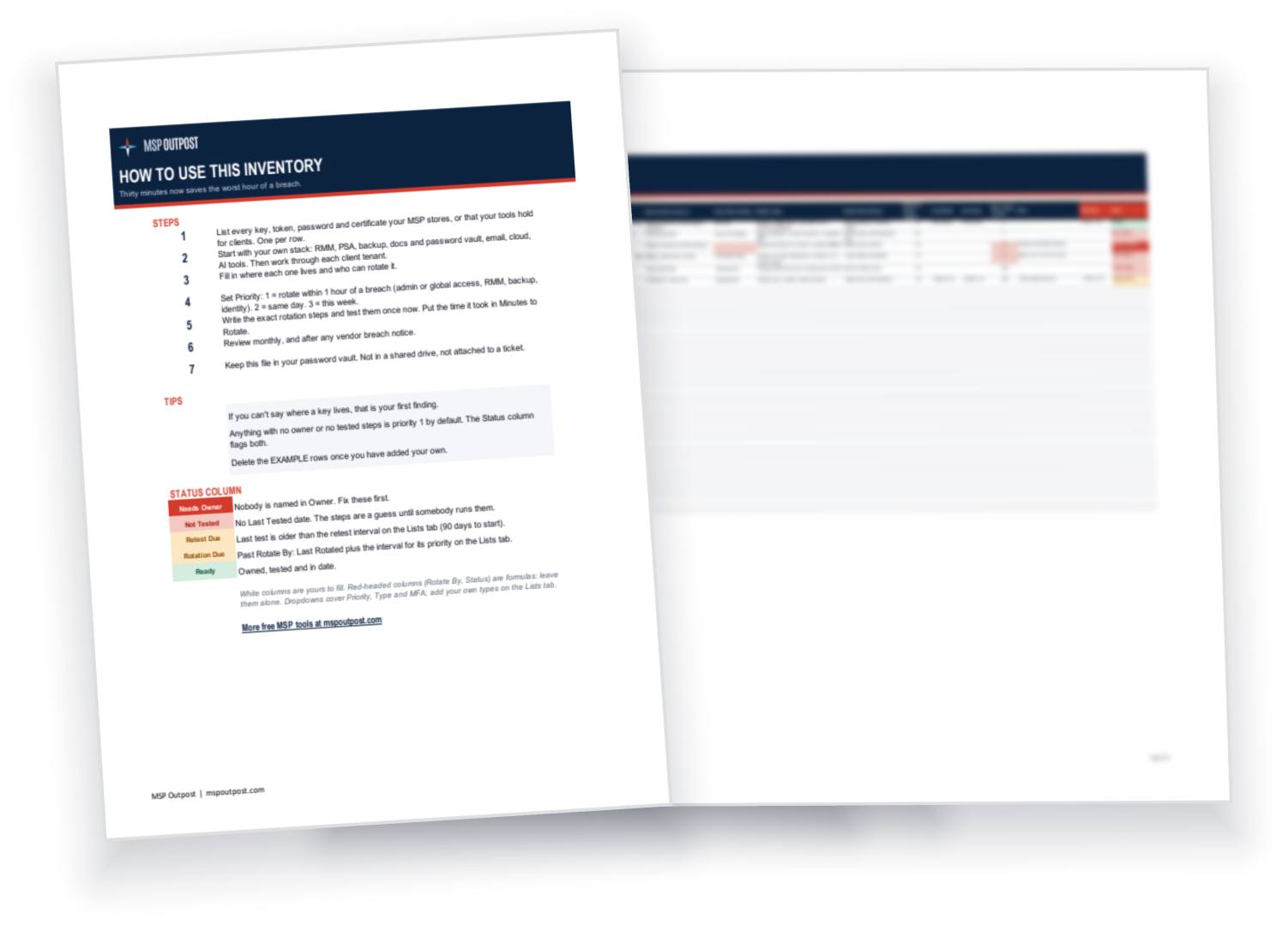
  • An inventory with one row per key, token, password and certificate, with dropdowns for priority, type and MFA
  • A Status column that flags Needs Owner, Not Tested, Retest Due and Rotation Due on its own
  • A Rotate By date worked out from when each secret was last rotated and its priority
  • A Summary tab with the minutes it takes to rotate every priority 1 secret
  • Six example rows covering an RMM API key, M365 global admin, a backup token, an AI key, a VPN key and a TLS certificate
  • A How To Use tab with the seven steps and retest intervals you can change

When a vendor in your stack announces a breach, the clock starts on every credential that vendor could have seen. Most MSPs then spend the first hour working out what they hold before they can rotate any of it.

This inventory moves that work to a quiet afternoon. Start with your own tools: RMM, PSA, backup, documentation and password vault, email, cloud and AI services. Then work through each client tenant. For every secret, note where it is stored, what it grants, who rotates it and what has to be updated afterwards.

Rank each one. Priority 1 is anything with admin or global reach, such as RMM, backup and identity, and it must be rotated within an hour. Priority 2 is the same day, and priority 3 is this week.

Then rotate each one once and time it. The Status column marks anything with no owner or with steps nobody has run, and the Summary tab adds up the minutes for your priority 1 list. If that total is more than an hour, split the work across people or shrink the list now, not during an incident.

Keep the finished file in your password vault, not on a shared drive, and review it monthly and after every vendor breach notice.

Welcome Back

Sign in to your MSP Outpost account.