
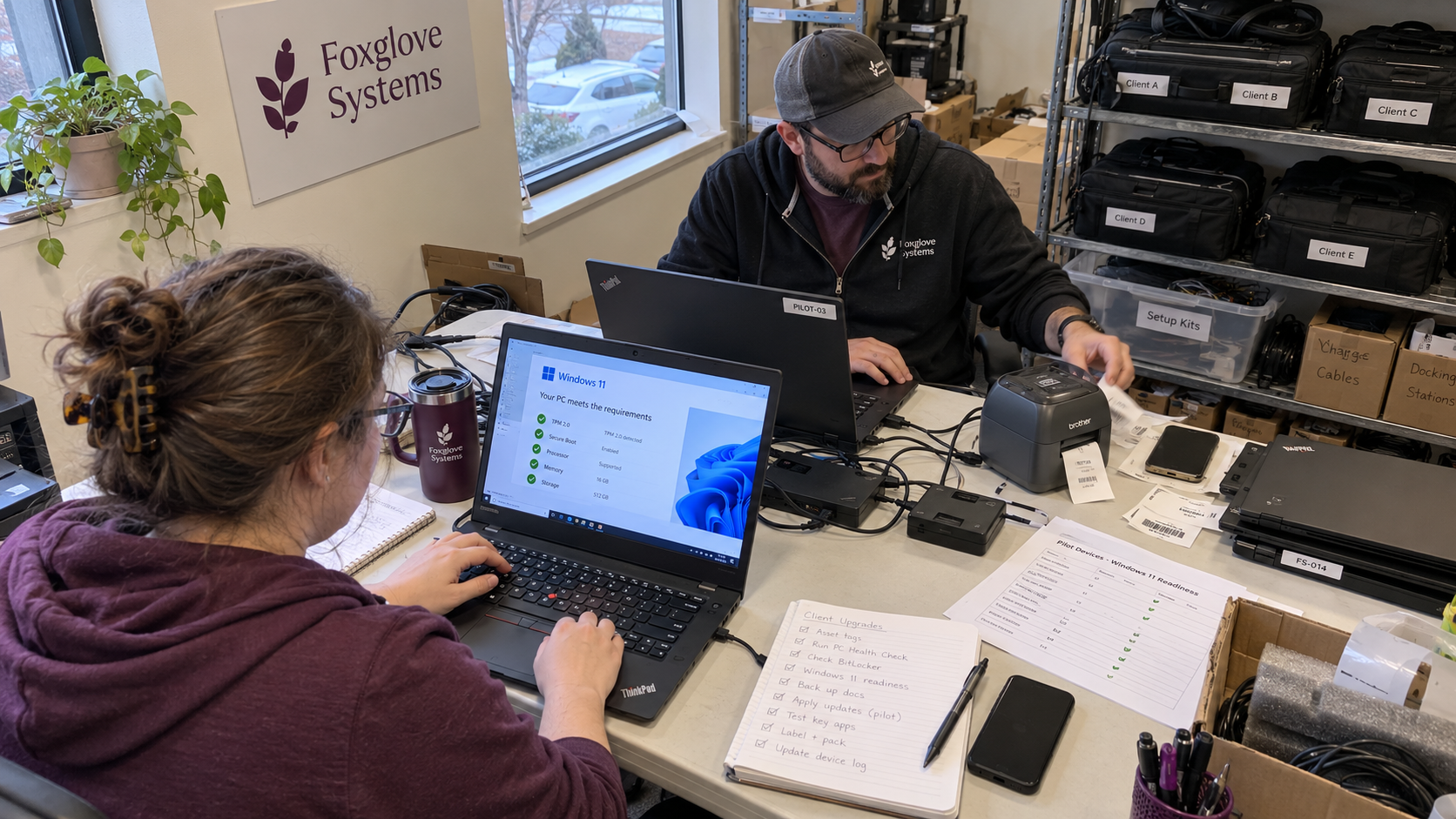
A Windows 11 upgrade checklist should pair device-readiness checks with a test of the client's actual work. Treat the compatibility result as an input to the rollout decision. It doesn't establish that the user can complete their job after the upgrade.
Think of that compatibility result as an admission ticket. It lets a device into the pilot; it doesn't certify the business result afterward. I'd keep readiness checks separate from the deployment job, with a named owner for any blocked device.
Choose the Target Before Checking the Fleet
Record the approved Windows target and deployment method in the change. Check Microsoft's current supported-version guidance and the relevant product requirements. Don't let an old RMM job determine the version just because its package still runs.
Use Microsoft's Windows 11 requirements guidance to check hardware eligibility. Keep the result against the actual device, including anything the readiness tool couldn't establish. A device with an unknown result hasn't passed merely because it didn't produce a failure alert.
The model calls for a standard stack and training the technicians who support it. Apply that discipline to the approved upgrade procedure. Record client exceptions rather than letting each engineer create a different production method.
Confirm which devices belong in this change. Keep replacement or investigation work assigned separately for devices that aren't ready. The client needs a plan for those systems as well as a count of devices eligible for deployment.
Record Readiness Before Scheduling Installation
Use the checklist below to build a per-device record. The technical owner decides what evidence the approved deployment method requires. Keep a failed or missing check attached to the device instead of hiding it in a fleet-wide completed status.
| Readiness Check | What the Technician Records | When to Hold the Device |
|---|---|---|
| Target and Eligibility | The intended version and the hardware-readiness result. | The target is unsupported for the approved use or eligibility is unconfirmed. |
| Update and Restart State | The status of required preceding updates and any pending restart. | The device still needs prerequisite work or its state is unclear. |
| Available Space | The current space check for the actual upgrade method. | The approved method's space requirement isn't met or hasn't been checked. |
| Firmware and Drivers | The applicable manufacturer support and approved changes. | A required compatibility issue remains unresolved. |
| Known Issues | Relevant findings from target-version and manufacturer guidance. | A blocking issue still applies. |
| Recovery Readiness | The approved recovery method and access needed if the upgrade fails. | The team can’t perform the agreed recovery. |
| Business Use | The application and peripheral checks agreed with the client. | Required work fails or has not been tested. |
| Deployment Window | The client’s accepted timing and the people available to respond. | The device or response cover isn’t available. |
Check the actual space available rather than confusing total drive capacity with room for this upgrade. Use the current requirements and the result from the chosen method instead of inventing a universal free-space threshold.
Resolve pending work through the approved update process. Recheck the resulting device state before returning it to the ready group.
Check manufacturer guidance for the affected hardware. Review the specific driver or firmware change and test it through your normal process. A general instruction to install every available driver doesn't explain which change the approved target needs.
Read the Compatibility Result Correctly
Keep the raw result and the relevant logs with the device record. Have the technician inspect a compatibility blocker and assign the required correction. A successful dispatch from the RMM only establishes that the job was sent, not what the compatibility check found.
Use the parameters appropriate to the approved deployment method and target. Don't copy an old command line without checking the current applicability. The scan's result still needs the surrounding readiness checks and a business pilot.
It depends on the target version, hardware family, and applications the client needs. Choose representative pilot devices from those differences. A result from a general office laptop doesn't settle an untested specialist workstation.
Respect Known Issues and Test the Actual Work
Check the Windows release-health information relevant to the target.
Keep a device with an unresolved blocking issue out of the normal rollout and give it a follow-up owner. Record what condition must change before another review. A deployment count isn't a reason to erase the reason the device was held.
For the pilot, have the client identify the work that must succeed. Test that work after the approved upgrade with the relevant user or application owner. Record the actual result and any limitation before extending the deployment.
Picture a pilot laptop that upgrades successfully but can't print the client's required labels. The person trying to dispatch goods could find the failure before the service desk sees a ticket. The acceptance check needs the label-printing result, not just a new Windows version in the inventory.
Prepare the Response Before Expanding the Job
Confirm the approved recovery method and who can carry it out. Check access to the required recovery information through the controlled store. Don't assume a generic rollback promise covers every failure or every stage of the deployment.
Have the service lead arrange response coverage for the accepted window. Tell the client what users need to do and how to report a problem. A sleeping laptop isn't a scheduling strategy.
The model uses RMM automation as the default NOC approach, with residual alerts handled by the desk. Make the upgrade's exception route visible to that team. They need the device result and the approved next action, rather than another unexplained automated ticket.
Expand only after the relevant pilot checks pass. If the job produces an unexpected failure or breaks required work, hold the affected group while the owner investigates. Save the evidence needed to distinguish a compatibility problem from a deployment or application issue.
Reconcile Devices After the Window
Compare the completed results with the intended device list. Give skipped or failed devices a next action and owner. A job marked finished doesn't establish that every targeted device upgraded.
Have the receiving technician confirm the management tools are reporting the expected state. Keep the client's business acceptance beside the technical result. Correct the procedure if the next person can't tell which checks passed.
Start with the approved target and a current device inventory. Assign the unknown checks, then choose a pilot that represents the differences you must support. Let the recorded results decide the next deployment group.

mspoutpost.com/articles/windows-11-upgrade-checklist-before-a-fleet-rollout
Written by Dana Kowalski
MSP Outpost publishes information, not legal, financial, insurance, tax or compliance advice, and reading it creates no professional relationship. For decisions about your business, talk to a qualified professional.